By Nipa C. (Nipa Cloud)
Published : October 16, 2026
Time : 5 min read

Cloud Migration
Move your on-premises systems to Nipa Cloud Space using VM images, with planned downtime and resources tailored to your business needs.
Overview
Managing on-premises servers can involve scalability limitations, maintenance costs, and risks associated with aging hardware. Organizations are therefore looking to the cloud for greater flexibility in managing their infrastructure.
Cloud Migration enables organizations to move virtual machines (VMs) from on-premises environments to Nipa Cloud Space by exporting VM images. Images from existing platforms, such as VMware (.vmdk) or KVM (.qcow2), can be uploaded and used to create compute instances in the cloud.
This approach is suitable for systems that can accommodate scheduled downtime, including internal applications, test environments, and historical data archives. Migration time depends on data volume, upload speed, and the readiness of the source environment.
How It Works
VM image migration uses Cold Migration, also known as Offline Migration. The process begins with a system assessment and a planned maintenance window. The source VM is then shut down to export its image, which is used to create a new instance on Nipa Cloud Space.
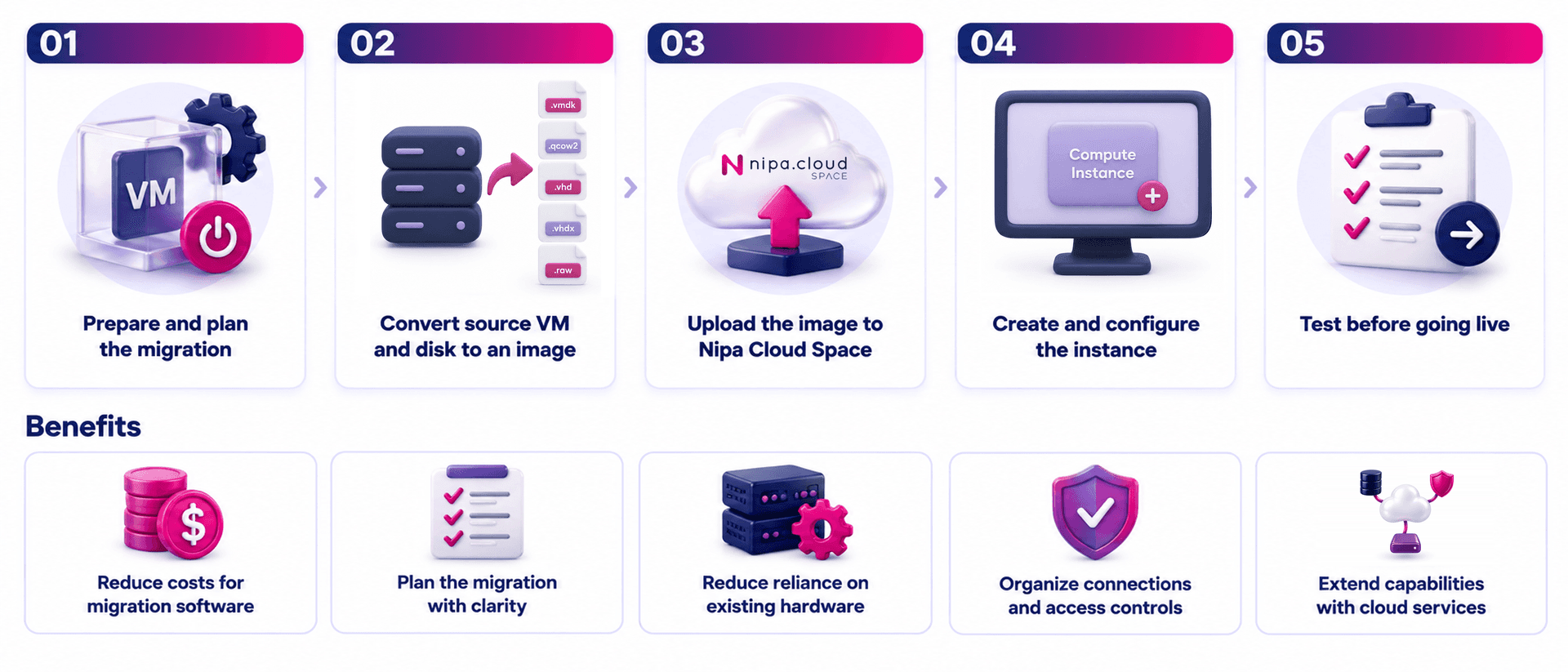
1. Prepare the Environment and Plan the Migration
- Review the operating system, applications, disk capacity, and related connections.
- Assess compatibility with Nipa Cloud Space and define resource requirements for the target environment.
- Back up the data, schedule downtime, and prepare a rollback plan before migration.
2. Convert the Source VM and Disks into Images
- Shut down the source VM to prevent data writes during export.
- Export the VM and its associated disks as image files from the source hypervisor, such as VMware (.vmdk), KVM/OpenStack (.qcow2), or Hyper-V (.vhd or .vhdx).
- Check the file formats and convert them for compatibility with Nipa Cloud Space if necessary.
3. Upload the Images to Nipa Cloud Space
- Upload the image files to Nipa Cloud Space to prepare for compute instance creation.
4. Create and Configure the Instance
- Select resources such as vCPU, RAM, and storage to suit the workload.
- Configure networking, security groups, and public IP addresses as needed.
- Check the operating system, drivers, and application connectivity.
5. Test Before Going Live
- Verify data completeness and test integration with related systems.
- Redirect traffic to the new instance once testing meets the defined requirements.
Note: Downtime depends on data volume, upload speed, and the steps required to prepare the target environment. Agree on a suitable maintenance window with all relevant stakeholders before migration.
Features
Multiple VM Image Formats
- Use images from existing systems: Import images from platforms such as VMware (.vmdk) and KVM/OpenStack (.qcow2), as well as raw disk images (.raw), to create instances on Nipa Cloud Space.
- Flexible migration options: Use images from your existing environment as a starting point, with file format and compatibility checks before migration.
Dynamic Resource Allocation & Resizing
- Select specifications to suit your system: Define vCPU, RAM, and disk requirements for new instances on Nipa Cloud Space as part of migration planning.
- Resize as workloads change: Instances can be resized after migration to accommodate changing workloads, helping align resources and budgets with business needs, based on the available configuration options.
Integration with Cloud Features and Services
- Ready to use after migration: Once an instance has been created from a VM image, you can immediately start using features and services on Nipa Cloud Space.
- Extend your capabilities as needed: Distribute traffic with Load Balancer, improve security with Security Group, automate backups with Backup Plan, store data on Object Storage (S3), and explore other services on Nipa Cloud Space.
Benefits
- Reduce Migration Software Costs: VM image migration may eliminate the need for third-party migration software licenses, depending on the tools and requirements of each system.
- Plan Your Migration Clearly: Cold Migration provides a structured process for scheduling downtime, preparing data, and verifying systems before they go live in the cloud.
- Reduce Reliance on Existing Hardware: Move workloads away from on-premises servers to reduce the burden of maintaining aging equipment and gain greater flexibility in infrastructure management.
- Organize Connectivity and Access: Moving to the cloud gives IT teams an opportunity to review system connections and access permissions. Configure IP addresses, firewall rules, and security groups to define which systems can communicate and who can access each service.
- Expand Your Infrastructure Capabilities: Choose Nipa Cloud Space features and services to support your business, including load balancing, backup, and data storage, with room to expand as requirements change.
Business Use Cases
Internal Systems and Dev/Test Environments
Common challenges: IT teams manage multiple servers for internal applications, testing, or reporting, with resources sometimes underutilized.
Cloud Migration can help organizations:
- Move systems that can accommodate scheduled downtime.
- Select instance resources suited to the new environment.
- Reduce hardware maintenance for test environments and internal systems.
Organizations Considering a Move Away from VMware
Common challenges: Organizations running VMware on-premises are evaluating alternatives due to licensing and hardware maintenance costs, or a need for greater infrastructure flexibility.
Cloud Migration can help organizations:
- Assess VMware images (.vmdk) for compatibility and prepare them for migration to Nipa Cloud Space.
- Migrate systems in stages based on business priorities and acceptable maintenance windows.
- Compare existing infrastructure costs and resource requirements with cloud options, accounting for any operating system and application licenses still required.
- Reduce reliance on existing VMware infrastructure once the migrated systems have been tested and validated.
Legacy Systems and Historical Data Archives
Common challenges: Older systems must remain accessible, or data must be retained under organizational policies, while the underlying hardware is aging or becoming difficult to maintain.
Cloud Migration can help organizations:
- Move systems with infrequent data changes away from existing hardware.
- Test applications and data in the new environment before going live.
- Reduce maintenance of existing equipment once the cloud environment is confirmed to meet operational requirements.
Conclusion
Cloud Migration on Nipa Cloud Space is an option for organizations looking to move on-premises systems to the cloud using VM images. It is suitable for systems that can accommodate scheduled downtime, with a process covering assessment, data preparation, image export, instance creation, and testing before launch.
After migration, organizations can reduce reliance on existing hardware, align resources with workload requirements, and use cloud features to support their long-term business needs.
Why Choose Cloud Migration on Nipa Cloud Space?
| Advantages | Business Benefits |
|---|---|
| Bring existing systems to the cloud | Use VM images from your existing environment to create instances on Nipa Cloud Space, with compatibility checks before deployment. |
| Follow a structured migration process | Schedule downtime, prepare data, and test systems before going live. |
| Reduce hardware maintenance | Reduce reliance on existing servers and the effort required to maintain on-premises equipment. |
| Match resources to business needs | Allocate vCPU, RAM, and storage according to workload and budget. |
| Use Nipa Cloud Space features as needed | Extend your environment with Load Balancer, Security Group, Backup, and Object Storage to suit your system requirements. |
